Introduction
Many laptop users often find themselves dissatisfied with the audio quality their devices provide, whether for entertainment or professional use. Built-in speakers and microphones frequently fall short in delivering the clarity and fullness desired. However, external microphones and speakers can transform your laptop’s audio capabilities, providing a powerful and clear sound experience. This guide will explore how to select and set up the best external microphones and speakers, helping to ensure you have an optimal audio experience across all activities.
Why Consider External Audio Devices?
Enhancing your laptop’s audio begins with understanding the limitations of its built-in systems and the benefits of adding external devices.
Limitations of Built-in Laptop Audio
Laptops are designed with portability and cost-efficiency in mind, often at the expense of sound quality. Built-in speakers frequently produce weak audio output with limited range, while microphones may lack effective noise isolation, creating challenges in delivering and receiving high-quality audio during calls or media playback.
Benefits of External Microphones
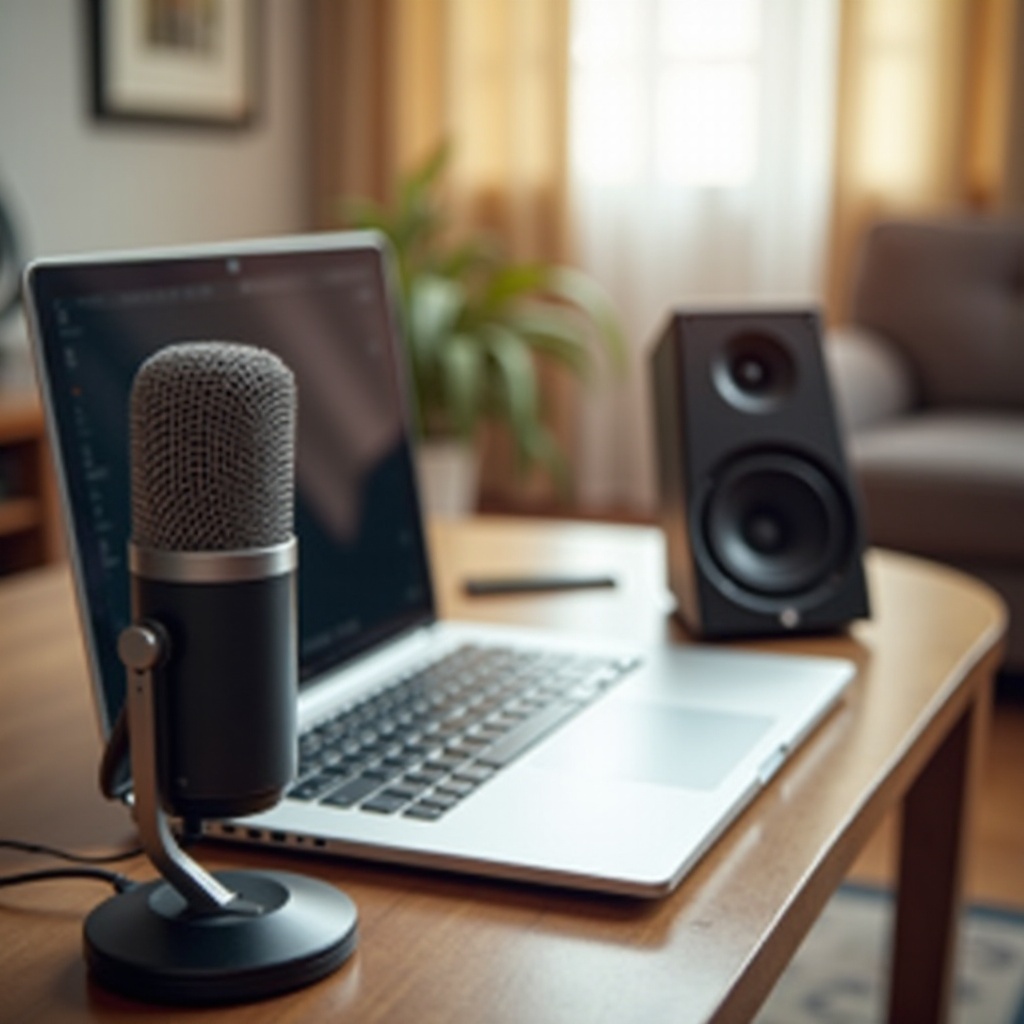
External microphones overcome these limitations by capturing audio with greater fidelity and clarity. They feature advanced noise reduction capabilities and directional pickup patterns that enhance communication and recording quality, ensuring your voice is heard clearly whether in meetings, podcasts, or voiceovers.
Advantages of External Speakers
External speakers offer a dramatic improvement over built-in audio solutions, delivering fuller bass and clearer treble tones. This enhancement is not only important for entertainment like movies and music but also for professional tasks such as video editing, where accurate sound reproduction is essential.
Equipped with the understanding of audio limitations and enhancements, proceed to select the optimal external microphone as a first step.
Choosing the Right External Microphone
Selecting the right microphone involves understanding your specific needs and the suitable types and features to fulfill them.
Types of Microphones: Condenser vs. Dynamic
- Condenser Microphones: Known for their sensitivity and frequency response, they are ideal for capturing vocals and delicate sounds in studio settings.
- Dynamic Microphones: More durable and resilient to high volume, these are perfect for live scenarios where ambient noise is a factor.
Connectivity Options: USB vs. 3.5mm Jack
- USB Microphones: The simplicity of plug-and-play makes USB microphones easily accessible and portable, providing reliable sound quality directly through your laptop’s USB ports.
- 3.5mm Jack Microphones: Offering professional-grade sound, they may require additional power sources but deliver excellent audio fidelity preferred by enthusiasts.
Key Features to Look For
Consider microphones with the following attributes:
– Frequency Response: The range of sound a microphone can reproduce, crucial for clarity.
– Polar Patterns: Choose based on directional needs — cardioid for vocal capture, omnidirectional for ambient sound.
– Sensitivity: High sensitivity microphones capture quieter sounds better, suitable for nuanced audio work.
Understanding microphones makes choosing the right speakers easier, ensuring a cohesive audio improvement plan between both choices.
Selecting the Best External Speakers for Your Laptop
To complement your microphone, selecting suitable speakers helps complete your audio upgrade, offering full sound spectrum capabilities.
Understanding Speaker Types and Configurations
- Portable Bluetooth Speakers: Offer easy wireless connections and mobility, ideal for casual and on-the-go audio needs.
- Computer Desktop Speakers: Models vary widely in quality and size but generally offer better sound than laptop speakers, fit for stationary setups.
- Soundbars: Compact and stylish, they maximize sound enhancement with minimal space usage, often used in home media systems.
Essential Features for Quality Sound
Key features when selecting speakers include:
– Wattage and Output Power: Determines the volume and clarity of the speakers.
– Frequency Range: A wide range ensures both deep bass and crisp highs.
– Connectivity Options: Ensure compatibility with your device, through Bluetooth, USB, or auxiliary ports for broad usability.
Top Brands to Consider
- Bose: Renowned for high-end audio performance and reliable build quality.
- JBL: Provides portable, robust speakers suitable for a wide array of settings.
- Logitech: Offers a versatile range ideal for both casual listeners and serious audiophiles.
With selected microphones and speakers ready, it is time to make sure they are set up correctly for optimal performance.
Setup and Installation Guide
Correct setup is crucial in achieving the best results from your external audio devices.
Connecting Your Microphone and Speakers
- Begin by securely connecting the microphone and speakers to your laptop using the correct ports or connecting via Bluetooth for wireless devices.
- Ensure the correct audio device is selected in your laptop’s sound settings to prioritize the external microphone and speakers.
Troubleshooting Common Issues
- Double-check connection points to verify they are secure and powered on.
- Install or update your laptop’s audio drivers if compatibility issues arise.
- Use your laptop’s sound settings to diagnose and adjust any sound quality issues.
Upon successful setup, dedicate time to optimize your settings for maximum performance.
Optimizing Audio Settings for Best Performance
Enhance sound production by fine-tuning your audio settings following device setup.
Audio Test and Calibration Tools
- Utilize your operating system’s built-in audio tests to assess performance.
- Applications like Equalizer APO facilitate detailed equalization and sound tuning.
Adjusting Settings in Your Operating System
- Access the sound settings panel within your operating system to view connected audio devices.
- Adjust levels for microphone input, ensuring your voice is clear but not overpowering, and speaker output for balanced sound.
- Regularly test these adjustments with media or calls to ensure consistent sound quality.
Conclusion
Upgrading your laptop audio maximizes enjoyment and efficiency in media consumption and communication scenarios. By incorporating high-quality external microphones and speakers and doing proper setup and optimization, you reap the benefits of outstanding sound quality. Evaluate your specific needs, choose equipment wisely, and follow setup steps to ensure a superior audio experience.
Frequently Asked Questions
What are the best brands for external microphones and speakers for laptops?
Brands like Bose, JBL, Shure, and Audio-Technica offer quality options for diverse needs and budgets.
How do I test the sound quality of my external audio devices?
Use your laptop’s built-in sound tests or third-party audio software to evaluate both microphone and speaker performance.
Are Bluetooth speakers a good option for laptops?
Yes, Bluetooth speakers are convenient, easy to connect, and offer excellent sound quality without the need for wires.