Introduction
Streaming media from your iPhone to a Roku TV using AirPlay offers an effortless way to enjoy your favorite videos, music, and photos on a bigger screen. With the convenience of wireless technology, connecting these devices can transform your living room into an entertainment hub. This guide will take you through each step of using AirPlay with your Roku TV, ensuring a seamless setup and streaming experience.
Understanding AirPlay and Roku TV Compatibility
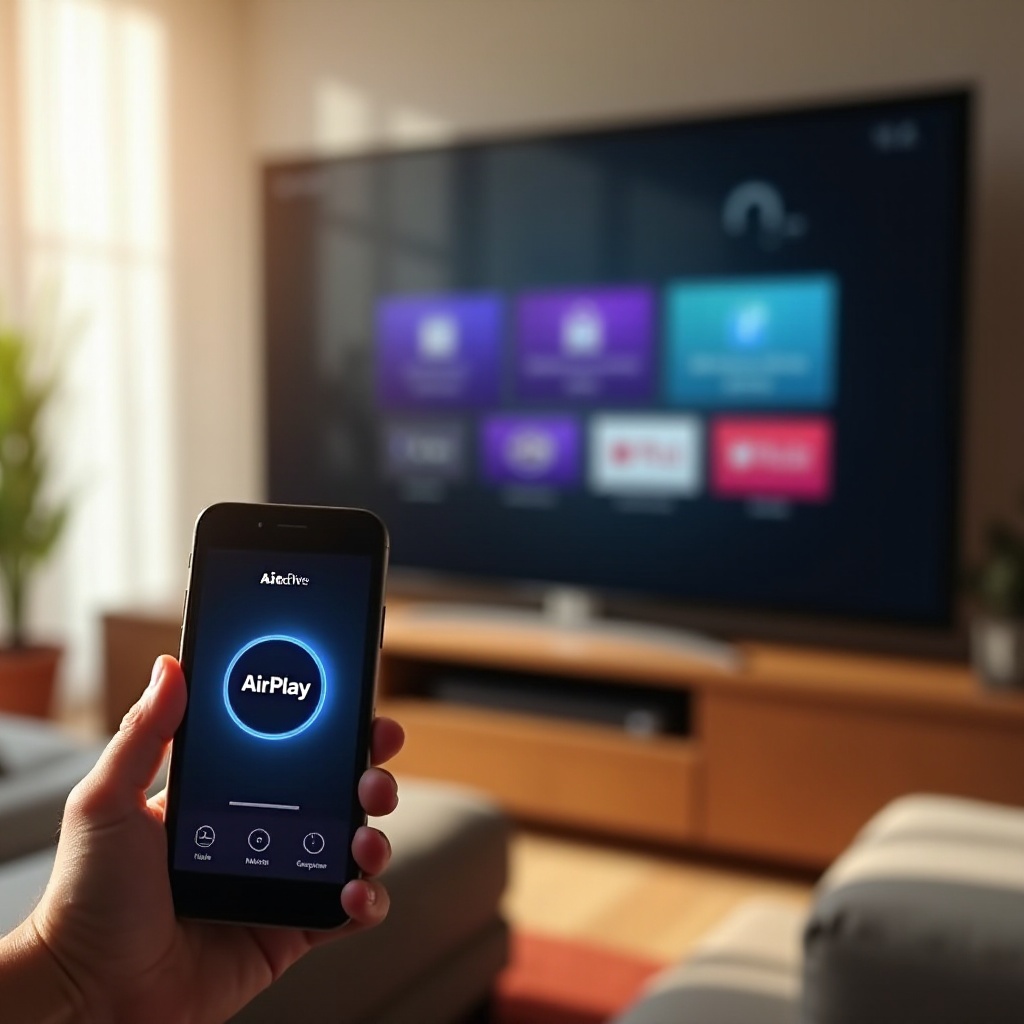
AirPlay, developed by Apple, enables wireless content sharing between Apple devices and compatible TVs like those from Roku. It’s essential to check that your Roku TV model supports AirPlay this ensures compatibility and a smooth experience. As of 2024, most new Roku TV models are equipped with AirPlay 2, expanding their streaming capabilities significantly.
What is AirPlay?
AirPlay is a proprietary system that allows users to stream media from their Apple devices to other compatible devices wirelessly. This feature supports video, audio, and photo sharing, providing a versatile tool for media consumption within your home.
Compatible Roku TV Models
To confirm your Roku TV supports AirPlay, review the specifications on Roku’s website or consult your TV manual. Generally, models released in the past few years are compatible with AirPlay 2. Ensure your device meets these requirements to facilitate uninterrupted streaming.
Preparing Your Devices for AirPlay
Before you begin streaming, it’s important to prepare both your iPhone and Roku TV. Proper preparation includes verifying software versions and ensuring both devices are ready for a stable connection. These steps help eliminate common connectivity issues and improve streaming quality.
Updating Your Roku TV Firmware
- From the Roku TV home screen, go to ‘Settings’.
- Select ‘System’, then ‘System Update’.
- Check for updates and choose ‘Update Now’ if any are available.
Keeping your Roku TV updated ensures it runs efficiently and supports all features needed for AirPlay.
Ensuring iPhone Software is Up-to-date
- On your iPhone, open the ‘Settings’ app.
- Tap ‘General’ followed by ‘Software Update’.
- Download and install any available updates.
Your iPhone’s latest software is crucial for optimal performance when using AirPlay.
Connecting Both Devices to the Same Wi-Fi Network
Ensure your Roku TV and iPhone are connected to the same Wi-Fi network. This shared connection is fundamental for AirPlay function and avoids potential network-related issues.
Setting Up AirPlay on Roku TV
Once your devices are prepared, setting up AirPlay on your Roku TV is straightforward. Adjusting these settings correctly will open a new world of streaming opportunities right from your iPhone, enabling content to be mirrored or shared seamlessly.
Enabling AirPlay on Roku Settings
- Navigate to ‘Settings’ on your Roku TV.
- Select ‘Apple AirPlay and HomeKit’.
- Turn AirPlay to ‘On’.
Enabling AirPlay is necessary for your Roku TV to accept connections from Apple devices.
Configuring iPhone Settings for AirPlay
- Swipe down from the upper-right corner of your iPhone screen to access the control center.
- Tap the ‘Screen Mirroring’ icon.
- Choose your Roku TV from the list of available devices.
Ensure your iPhone connects securely to maintain a stable streaming service.
How to Stream Content from iPhone to Roku TV
Now that setup is complete, you can easily stream a variety of content types from your iPhone. From personal videos to your favorite music, AirPlay offers a versatile solution for all content streaming needs.
Streaming Videos
- Open a video on your iPhone.
- Tap the AirPlay icon located within the video player.
- Select your Roku TV as the device to stream to.
Videos will now play on your TV, giving you control directly through your iPhone.
Playing Music via AirPlay
- Launch your music app on the iPhone.
- Play your chosen track.
- Tap the AirPlay icon and select your Roku TV.
Experience high-quality sound from your home entertainment system synced to your TV.
Screen Mirroring and App Mirroring
Screen mirroring allows your entire iPhone screen to appear on the TV, perfect for displaying photos and using apps. This feature is ideal for presentations and app demonstrations.
Troubleshooting Common AirPlay Issues
Even with everything set up correctly, there may be times when you encounter issues. Knowing how to troubleshoot these problems can help you maintain a smooth and enjoyable viewing experience.
Connectivity Problems and Solutions
- Double-check that both devices are on the same Wi-Fi network.
- Restart your router, iPhone, and Roku TV.
- Re-enable AirPlay settings if necessary.
Improving Streaming Quality
- Locate your router in a central position to strengthen Wi-Fi signals.
- Limit other devices from using the same network.
- Close unnecessary apps on your iPhone.
Resolving Playback Errors
- Install any pending updates on your devices.
- Clear cache data on Roku TV if possible.
- Reboot the TV and reconnect your iPhone.
Conclusion
Using AirPlay to stream from an iPhone to a Roku TV can significantly enhance your home entertainment experience. Follow these guidelines for a hassle-free setup, gaining the full benefit of convenient, high-quality media streaming. Whether you’re sharing family photos or watching movies, AirPlay offers a reliable and powerful connection.
Frequently Asked Questions
How do I know if my Roku TV supports AirPlay?
Check your Roku TV’s specifications on Roku’s website or the manual. Models released after 2020 typically offer AirPlay compatibility.
What should I do if AirPlay keeps disconnecting?
Ensure both the iPhone and Roku TV are on the same Wi-Fi network. Rebooting both devices can resolve connectivity issues.
Can I use AirPlay with other devices besides Roku TV?
Yes, AirPlay works with devices like Apple TV and other smart TVs equipped with AirPlay 2, provided they are compatible.