Introduction
Experiencing issues with your Roku Stick can be a significant inconvenience, especially when you’re ready for entertainment. This compact streaming device, widely used for its convenience and access to various channels, can sometimes encounter problems that disrupt your viewing experience. By understanding the potential issues and how to resolve them, you can quickly get back to enjoying your favorite content. This guide will provide comprehensive troubleshooting steps for a smooth Roku Stick recovery.
Identify Common Roku Stick Issues
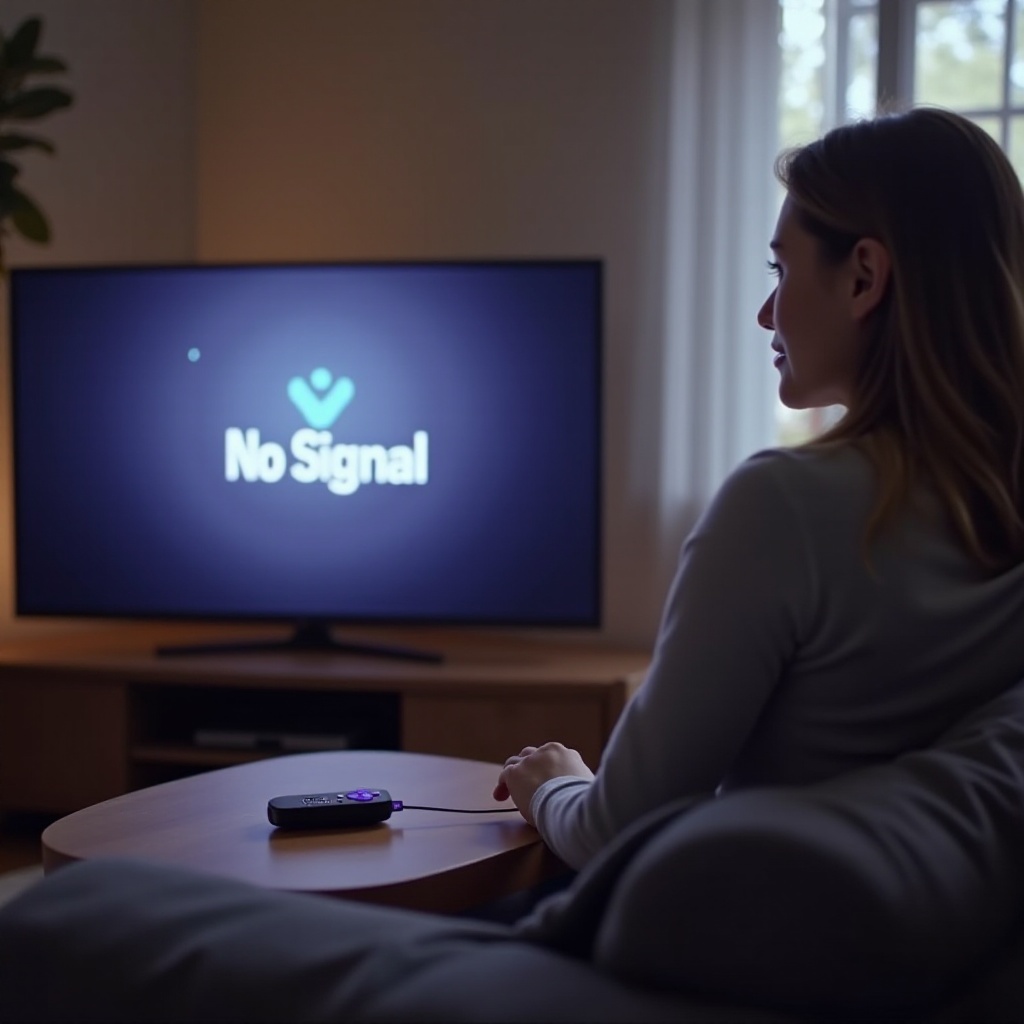
Understanding the common issues that affect the Roku Stick is crucial to effective troubleshooting. Connecting the dots on what’s causing your device to falter will aid in swift problem resolution.
- Connectivity Challenges: Weak Wi-Fi or router-related hitches can result in spotty streaming.
- Power Supply Malfunctions: Inadequate power supply via faulty adapters or cables can cause shutdowns.
- Software Glitches and Update Failures: Malfunctions due to software bugs or outdated system firmware can degrade performance.
Once you pinpoint the issue, employing targeted solutions becomes simpler and more effective.
Basic Troubleshooting Steps
Kick off your troubleshooting with straightforward solutions to address initial concerns that might be causing disruptions.
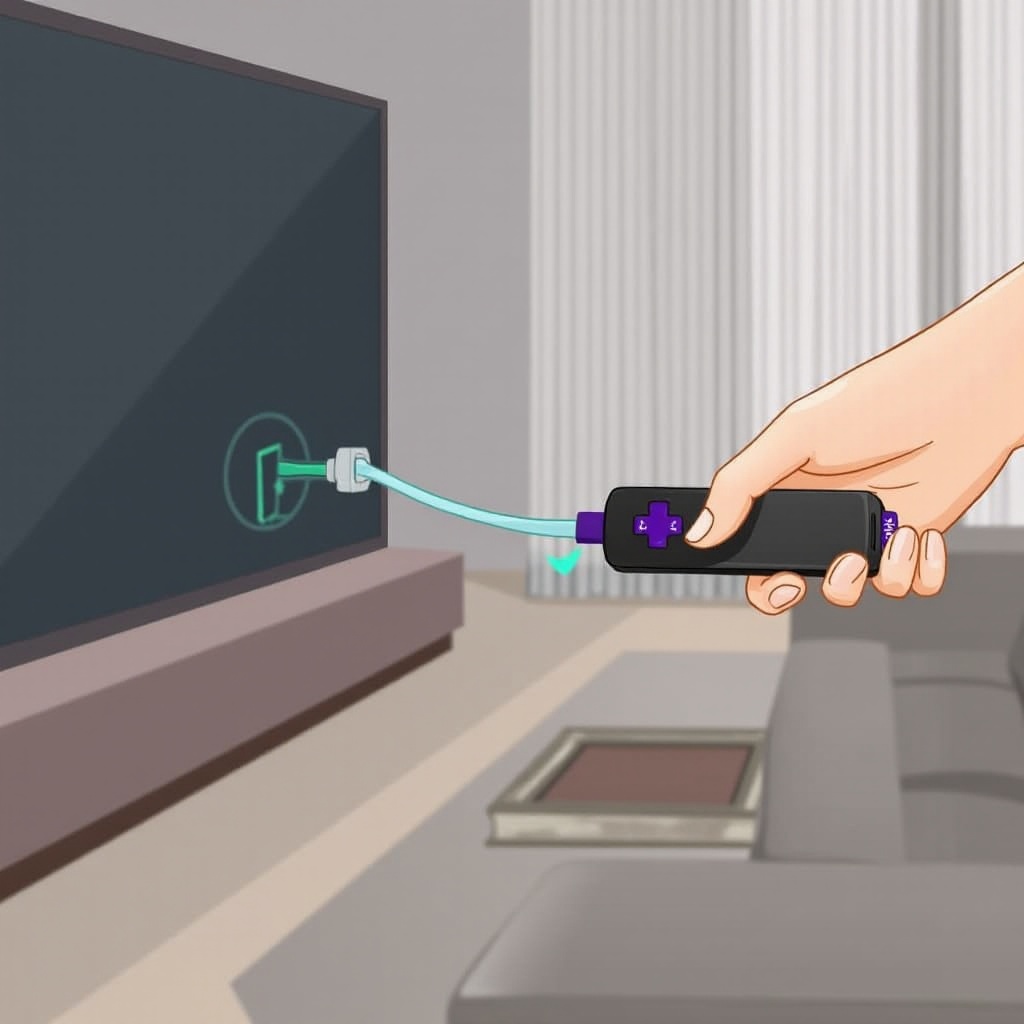
- Check HDMI and Power Connections: Verify that the HDMI and power cables are securely connected to the device. Often, a loose connection can cause problems.
- Restarting Your Roku Device: A simple restart can resolve several minor glitches. Disconnect the power cable, wait a moment, and then reconnect it.
- Ensuring Correct TV Input Settings: Ensure that your TV is set to the correct input source to which the Roku Stick is attached.
After verifying these areas, you can move on to more in-depth troubleshooting if the issues persist.
Solving Network Connection Problems
The Roku Stick’s performance is heavily reliant on a stable internet connection. Resolving network issues is vital for continuous viewing pleasure.
- Verify Wi-Fi Connectivity: Check whether other devices share the network issue, indicating if the challenge is with the Roku Stick or your network.
- Rebooting Your Router and Roku: Power off both the router and your Roku. After a minute, power them back on to reset the network settings.
- Optimize Network Settings for Stability: Position the router in a central location to strengthen the signal. Upgrading to a higher-end router may also enhance performance.
A reliable network can drastically reduce streaming interruptions and connectivity complaints, smoothing your entertainment experience.
Advanced Software and System Checks
If basic troubleshooting doesn’t rectify the issue, further investigation into the device’s software and system configuration might be necessary.
- Updating Roku Firmware: Go to Settings > System > System Update to make sure the firmware is current. Many issues stem from outdated software.
- Clearing Cache and Resetting System: Over time, cache can build up and cause performance issues. Resetting the system or clearing cache via Settings > System > Advanced System Settings can help.
- Using Roku App for Troubleshooting: The Roku app provides additional tools and settings that can enhance your troubleshooting capabilities.
Taking these advanced steps usually remedies persistent glitches and enhances your device’s performance.
Addressing Hardware and Power Issues
Checking the hardware components ensures that the device itself isn’t at fault, thereby narrowing down potential problems.
- Inspecting Power Adapters and Cables: Test the power adapter and use different cables if necessary to confirm the adequacy of the power supply.
- Testing with Alternate TVs or Monitors: Connect the Roku Stick to another display to ascertain whether the issue lies with the TV or the stick itself.
- Managing Device Heat and Ventilation: The device can overheat if improperly ventilated. Ensure it is placed in a cool, open area to avoid performance throttles.
Verifying these hardware components can reveal and rectify issues that software troubleshooting might miss.
Conclusion
Despite disruptions, a well-outlined troubleshooting process enables you to swiftly diagnose and fix Roku Stick issues. Whether through reconnecting cables, updating firmware, solving network meddles, or performing deeper system checks, these methods ensure minimal downtime during your entertainment sessions. Regular checks and proactive maintenance can significantly extend the device’s lifespan, ensuring smoother operation and uninterrupted viewing.
Frequently Asked Questions
How do I perform a factory reset on my Roku Stick?
Navigate to Settings > System > Advanced system settings > Factory reset and follow the on-screen prompts to revert the device to its default settings.
What should I do if my Roku Stick is overheating?
Position the device in a well-ventilated spot and ensure it’s not covered by other devices. Persistent overheating might indicate a need for replacement.
Can I troubleshoot my Roku Stick using a mobile app?
Yes, the Roku mobile app enables troubleshooting and device management remotely. It’s available for download on both iOS and Android platforms.